



Published 2026-06-22
Connect the testo 174 BT data logger to the app

Are you using a testo 174T BT or testo 174H BT and need help connecting it to the testo Smart App? Below, we’ll walk you through the steps to connect the data logger to the app and get started with your measurements.
Before you begin:
If you don’t have the app, you can download it here:
How do you connect the data logger to the app?
Check to see if the Bluetooth icon appears on the logger’s display. If the icon is not visible, press the logger’s button to turn on Bluetooth.

Open the app and tap the menu (the three lines in the upper-left corner).

Select “Measuring Instruments”

The logger should then appear under “Can be connected.” Click on the logger.

Click “Connect measuring instrument.”
The logger is now connected to the cell phone via Bluetooth, and you can read measurement data from the logger and configure it.
How do you configure the data logger?
Go back and click the menu in the upper-left corner again.
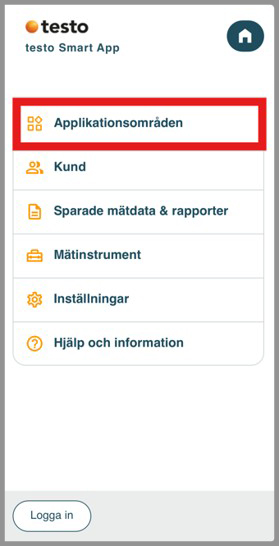
Select “Application Areas.”

Then select “Data Logging for testo 174 BT.”
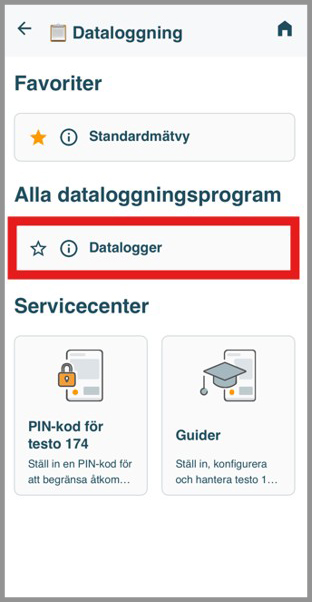
Select “Data Logger.”
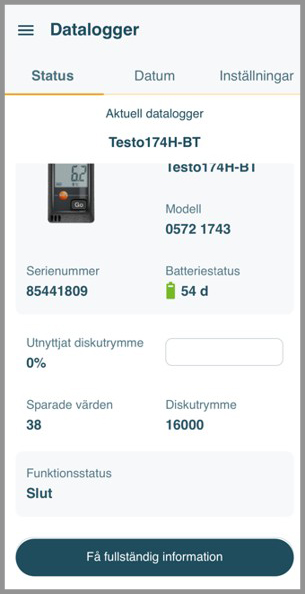
You will then be taken to the page where you can manage settings, view status, and export data.
Settings
On the first page, you can see the logger’s status. In the image, the operational status is “End, “ which means the logger is not measuring. In this mode, the logger’s display shows “End. “
This screen also displays an overview of the battery status and storage space.
Click “Settings” to access all configuration settings.

Here you can name the logger and add a description, such as where the measurement is taken. You can also set the measurement interval, how the measurement should start (via the app, by holding down the button on the logger, or at a specific time), and how you want the measurement to end (at a specific time, when the memory is full, or using overwrite memory). With memory overwrite, the first measurement value is overwritten if the memory becomes full.
This is also where you set the alarm limits. If a limit is exceeded, an arrow appears on the logger’s display to indicate whether the value is too high or too low.

Select a display option:
“On” = values are shown on the display.
“Off” = nothing is shown on the display.
“Measurement values off” = status is shown, but measurement values are not displayed.
Select the Bluetooth option:
“Always On” = The logger can always be found via the app if Bluetooth is enabled on your phone and you are within range.
“GO button” = To connect the logger to the app, you must press the logger’s GO button. A Bluetooth icon will then appear on the display, and the logger can be connected to your phone.
Once all settings have been configured , select “Use Configuration.” The selected settings will then be transferred to the logger.
Once the settings have been transferred but the measurement has not yet started, “Wait” appears on the logger’s display.
Once the measurement has started according to the selected start condition, “Rec” appears on the display. This means that the measurement is in progress. “Rec” remains on the display until the measurement ends according to the selected stop condition.
Status on the display.
“Wait” = The logger is configured but measurement has not started
“Rec” = The logger is measuring
“End” = Measurement is complete
End the measurement and read the measurement data

The “Recording” status means that the logger is taking measurements.

If buffer memory has been selected as the stop condition, you can stop the measurement in the app by tapping “Stop Logging.”
If you do not want to stop logging but only want to retrieve stored measurements , tap “Get Full Information” instead . The stored measurements will then be retrieved while the logger continues to measure.

When measurement data is retrieved but logging continues, this message appears. Click “Next.”
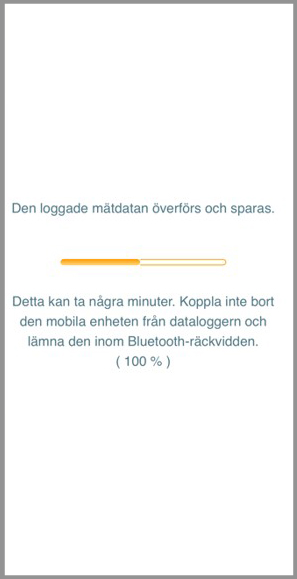
The measurement data is saved to the app. The report file then opens.

Here you can add information about the customer, any photos, and notes.

At the bottom of the page, you can select which measurement parameters to display.

“Show Values” displays a list of all values. Values outside the limits are shown in red.
Reports

Click “Report” to create a report.
Note: To create a report, you must be logged in to the app.

If you are logged in, you will see this screen. Check the box labeled “Create PDF with all measurement values” and select “Create.”
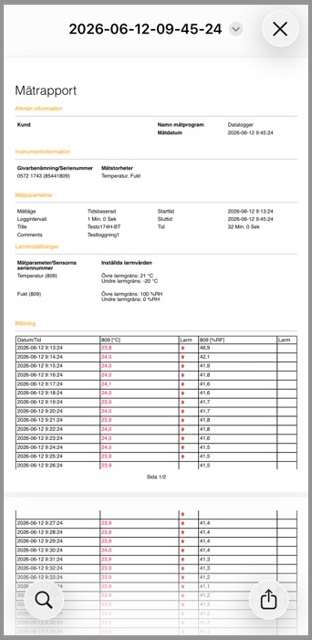
A report will then open on the screen.

To access your reports, go to the menu in the upper-left corner and select “Saved Measurement Data & Reports.”
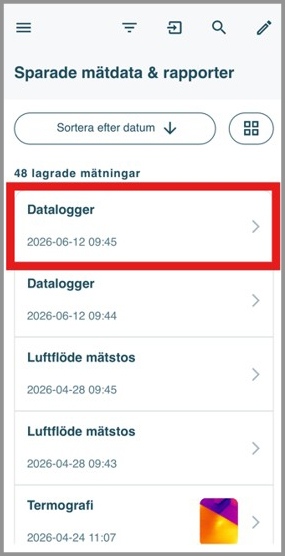
The most recently saved report is at the top.

Click on the metric you want to view. You will then be taken to the page where you can create and export a report.

Learn more about the testo Smart app
From measurement to final documentation—right on your phone.

Would you like to learn more about the testo 174 series?
Discover the differences between Bluetooth and USB-C and find the right model for your business.
Contact persons

CUSTOMER SERVICE AND SALES
Amanda Lööv Miljevic
Area of responsibility: Industry, Food, Life Science
amanda.loovmiljevic@nordtec.se
031-704 10 75
031-704 10 70